![Logo white.png]](https://www.constrafor.com/hs-fs/hubfs/KB-ConstraConnect/Logos/Constrafor%20Logo%20-%20White/Logo%20white.png?height=40&name=Logo%20white.png)
How do I connect my Procore account?
There are two steps to connecting your Constrafor and Procore account.
1. Connect to your procore in Constrafor
Attention: The Procore account you connect must have Admin permissions. We recommend getting those login credentials first before beginning the integration process.
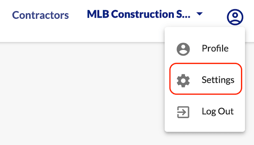
Navigate to your Constrafor Settings.
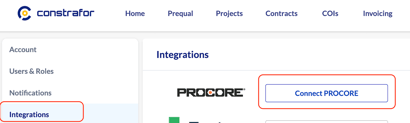
Next, click Integrations on the left side. Then click Connect Procore.
2. Install the Constrafor App within Procore
In Procore, Navigate to App Management. From there, add/install Constrafor from the procore marketplace: https://marketplace.procore.com/apps/constrafor
For additional help on this step within Procore, please refer to the following Procore help article here: https://en-ca.support.procore.com/products/online/user-guide/company-level/admin/tutorials/install-app-from-marketplace
Once you've completed steps 1 and 2, please reach out to your Constrafor Customer Success Manager or to support@constrafor.com to ensure the desired data fields are fetched from Procore.
3. Q&A
How much does an integration with Procore cost?
Integration Constrafor with Procore does not come with any additional fee. It is included in your Constrafor subscription.
How are my contracts/COIs being connected between Constrafor and Procore?
The integration utilizes the contract number in order to push and pull information between the two platforms. If you encounter an error where an item was not pushed, it is recommended that you first check the contract number.
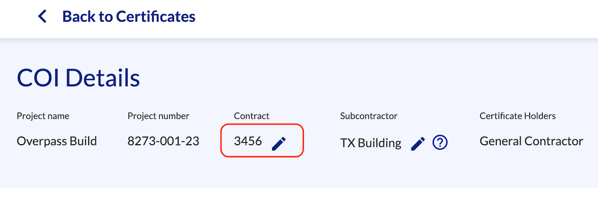
If you are using your integration in conjunction with the COI module, you can change the contract number in your COI request by clicking the pencil icon next to the number in the COI Details page.
How often does the integration push/pull information?
The integration operates frequently at regular intervals throughout each day.
Based on what your custom configuration looks like, pushing information runs on a different schedule than pulling information.
Pushing information TO Procore usually takes around 1 to 5 minutes.
Pulling information FROM Procore takes longer. Exactly how long may depend on your setup.
The contract numbers match, but the information still did not go through. What now?
For additional help, you can also reach us by phone at (650) 313-6165 or email at support@constrafor.com.