![Logo white.png]](https://www.constrafor.com/hs-fs/hubfs/KB-ConstraConnect/Logos/Constrafor%20Logo%20-%20White/Logo%20white.png?height=40&name=Logo%20white.png)
A joint check agreement is signed by the general contractor (GC), a subcontractor, and one of the subcontractor's suppliers. Under the agreement, the GC pays the supplier directly on relevant invoices, and that amount is deducted from what the GC pays the subcontractor.
With the Joint Check feature, you can record these agreements on a subcontract's Schedule of Values (SOV), allocate payments to suppliers on individual invoices, generate a second-tier AIA for each supplier, and send it to your Accounts Payable (AP) team, all without leaving Constrafor.
Key terms- First tier: the subcontractor who submits the invoice.
- Payee (second tier): the party paid directly under the joint check agreement, typically a supplier.
- Agreement cap: the maximum amount that can be paid to a payee under the agreement, across all invoices on the subcontract.
- Remaining cap: the agreement cap minus everything already allocated to that payee on other invoices (pending and approved).
- Have the signed joint check agreement ready to upload.
- Know the agreement cap for each payee.
- Know the email address of the AP contact who should receive payee documents.
Step 1: Set up the joint check agreement on the SOV
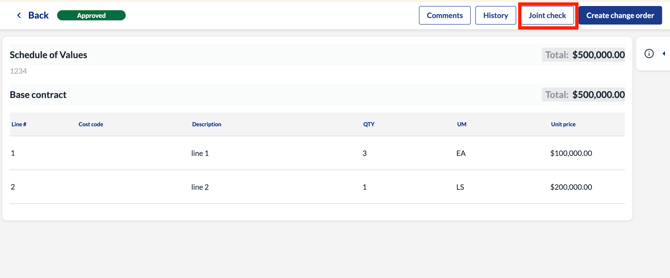
- Open the subcontract's SOV.
- In the SOV header, click Joint check.
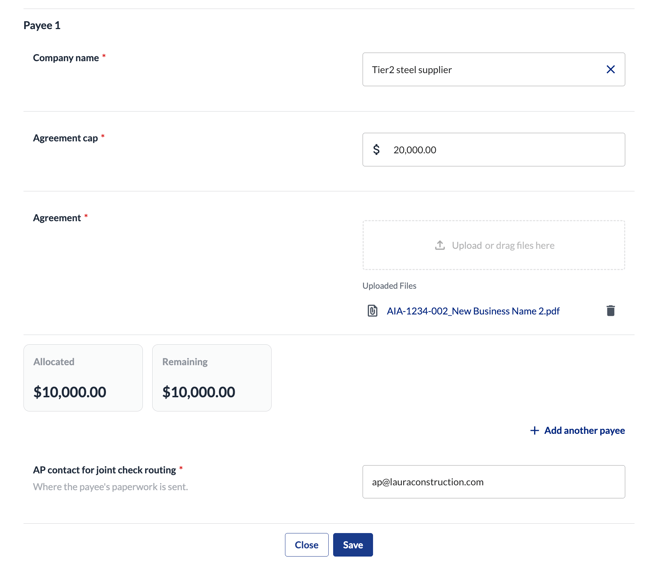
- On the Joint check agreement setup screen, add a payee:
- Company name: select an existing payee from the list or add a new one. Payees you've added before can be reused on other subcontracts.
- Agreement cap ($): enter the maximum amount payable to this payee.
- Agreement: upload the signed joint check agreement.
- To add more payees to the same subcontract, click + Add another payee.
- Enter the AP contact email address. This person will receive the AIA and supporting documents for each payee.
- Click Save.
Tip: You can set up or update joint check details even after the SOV has been approved. You can add new payees and increase an agreement cap at any time. You can lower a cap as long as the new amount isn't less than what's already been allocated to that payee.
Step 2: Add a payee to an invoice
Once the agreement is saved, its payees are available on invoices for that subcontract. They show a status of Not Included until you add them to an invoice.
- Open an invoice on the subcontract that hasn't been approved yet.
- Click Joint check.
- Select the payee you want to include.
- Enter the amount due to the payee on this invoice. The payee's remaining cap is shown for reference.
- Upload supporting documentation, such as the supplier's invoice or lien waiver.
- Click Save. The payee's status changes to Ready, and a second-tier AIA is generated for the amount you entered.
Repeat these steps to include more than one payee on the same invoice.
Step 3: Send the payee's documents to AP
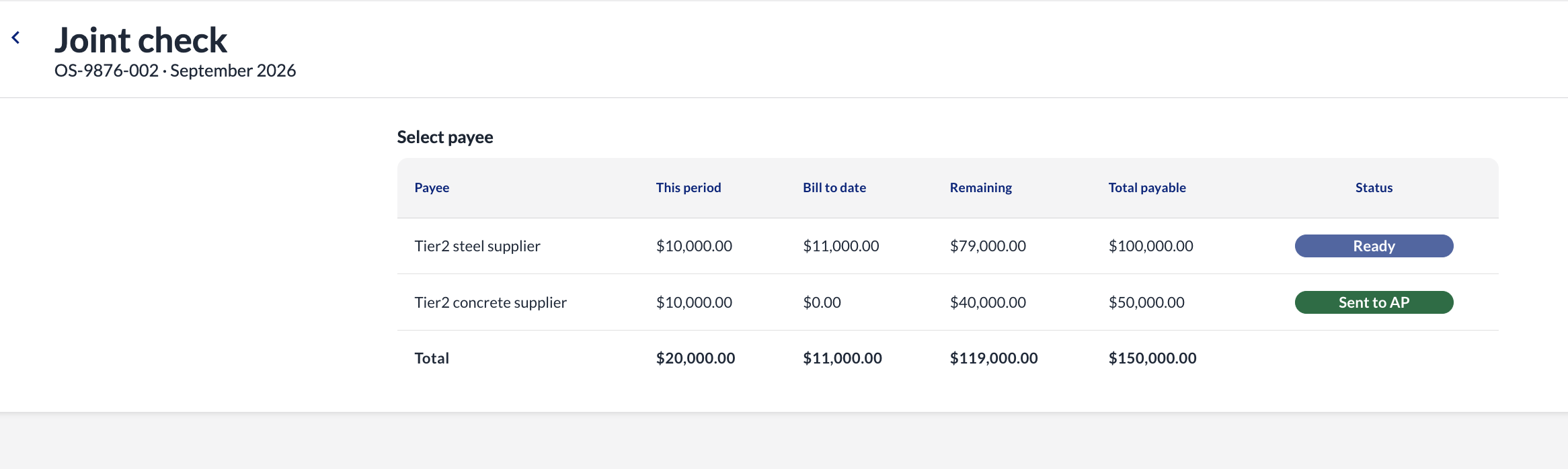
- On the invoice, find the payee with a Ready status.
- Click Send to AP.
The second-tier AIA and supporting documents are emailed to the AP contact entered on the SOV, and the payee's status changes to Sent to AP. Delivery status is tracked for each email.
Note: Constrafor generates and routes the payment documents. The payment itself is issued by your AP team through your usual process.
How joint check amounts affect the subcontractor's invoice- The joint check amount is deducted from the subcontractor's net payable on that invoice. It does not appear as a separate line on the subcontractor's AIA.
- The subcontractor's AIA is updated to show only the amount payable to the subcontractor.
- Retainage does not apply to joint check amounts. A payee with a $100,000 cap can be allocated the full $100,000.
- The remaining cap for each payee is tracked across all invoices on the subcontract, including both pending and approved invoices.
- If you enter an amount higher than the payee's remaining cap, you'll see an error and the amount won't be saved.
- If an invoice that includes a joint check allocation is rejected or deleted, the allocated amount is released back to the payee's remaining cap.
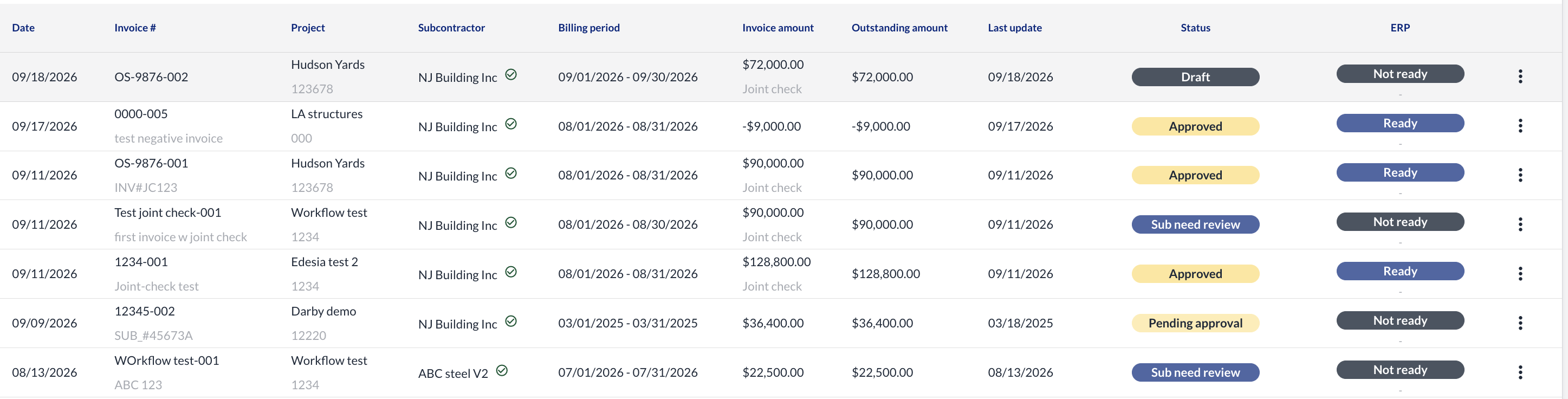
SOVs and invoices that include a joint check are marked with a Joint check identifier in the SOV and invoice tables. This tells you at a glance that part of the amount shown won't go to the subcontractor. Click the SOV or invoice to see the payment breakdown.